Seedr Media Player Tips and Keyboard Shortcuts
The short version
Seedr's media player runs in the browser. It plays your cloud files without any install, on any platform — Mac, Windows, Linux, Android, iOS — because it's the browser doing the work. These tips speed up day-to-day use: keyboard shortcuts, subtitle tricks, playback speed, and window modes. If you're brand new, read the media player features overview first, then come back here.
Why these tips matter
Most people use ten percent of a video player. The default buttons get you playing, but you fight the tool on every rewatch. A few shortcuts remove friction:
- Skim past intros in one keypress.
- Learn a language by slowing a line to half speed.
- Keep a tutorial visible while you work in another tab.
- Sync subtitles that drift a second or two.
Seedr's viewer is built for these cases. It's keyboard-friendly, and picking a setting applies it immediately — no reload.
Keyboard shortcuts
The player listens for these keys while the video area is focused. Click the video once before using them if nothing happens.
- Space — play / pause.
- K — pause (alternative to space).
- Left / Right arrow — seek backward / forward.
- Up / Down arrow — volume up / down.
- M — mute toggle.
- F — full-screen toggle.
- N — next file.
- Esc — exit full-screen.
Full-screen vs picture-in-picture
Two window modes, two different problems.
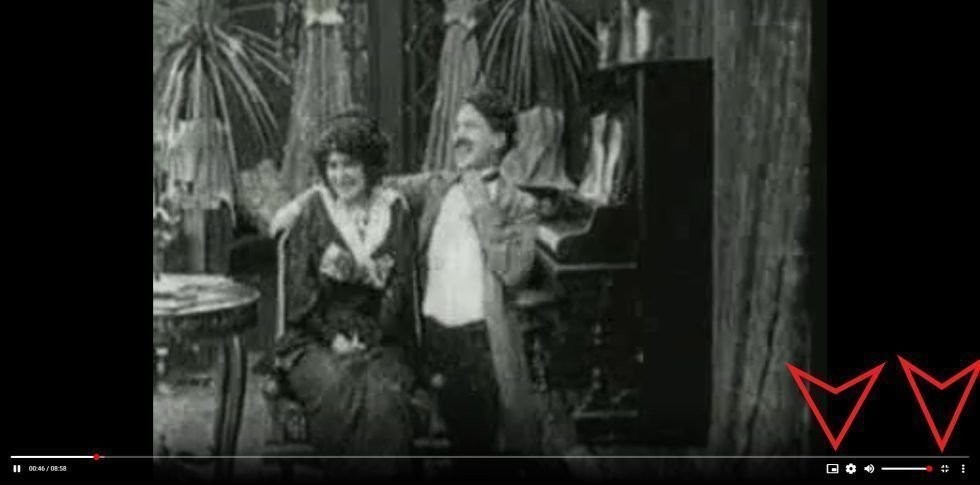
Full-screen is for when the video is the thing. Press F or click the expand icon in the bottom-right of the player. The video takes the whole display. Good for films, episodes, anything you want to focus on.
Picture-in-picture (PiP) detaches the video into a small floating window that stays on top of any other app or browser tab. Click the PiP icon in the player controls to pop it out. Good for following a tutorial while you work, or keeping a livestream in the corner. PiP is a browser feature, so the look of the floating window differs between Chrome, Firefox, Edge, and Safari, but the behaviour is the same everywhere it's supported.
Subtitles — three things most people miss
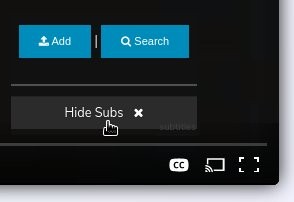
The subtitles button is in the top-right of the player. Click it and you get three tools:
- Pick an embedded subtitle track. Common in MKV files; pick the language or commentary track from the dropdown.
- Search OpenSubtitles. The built-in search pulls matches for the filename. Choose a language, click, and the track loads directly into the player — no download, no upload.
- Adjust appearance. Size, colour, background opacity, vertical position. Useful on bright HDR files where white-on-transparent disappears.
Subtitles in Seedr are soft-overlay (SRT/VTT) — they render on top of the video and stay in sync when you change playback speed. If the timing drifts by a second or two, use the offset control under the track selector and nudge it until the dialogue lines up.
For the full subtitles flow, see how to use subtitles in Seedr.
Playback speed for learning and skimming
Click the playback-speed icon in the player controls and pick from 0.5x, 1x, 1.5x, 2x, 2.5x, and 3x.
- 0.5x for language practice, dense technical talks, or transcribing music.
- 1.5x for tutorials and lectures you mostly know.
- 2x or higher for re-skimming something you already watched.
The change is instant and applies mid-playback without reloading. Pitch is preserved, so voices don't sound chipmunked at higher speed or growling at lower speed.
Quality and bandwidth
4K playback is supported on Master and Gold plans; lower tiers play at the highest quality your plan allows. The quality selector sits with the other controls. If a video stutters, drop one step — usually a lower-bitrate version streams fine where the original was too heavy for the connection. If the image looks soft and your line is quick, step back up.
Works anywhere you have a browser
Because the viewer is browser-based, the same player, same shortcuts, same subtitle flow work on a MacBook, a Windows desktop, an Ubuntu laptop, an Android tablet, or an iPhone. No app store, no per-device install, no drift between platforms.
Tips work, but the player is still a player
Don't expect desktop-app features like per-frame editing or audio-track mixing. The viewer is for playback. If you need editing, save the file locally and open it in VLC or your editor of choice.
Was this article helpful?
Related Articles

How to open HEIC photos online on Windows, Android, or any browser
Open iPhone HEIC photos from any device in Seedr’s cloud viewer — no conversion, no codecs, no extra apps — and keep them organized alongside your other files.

Connect Seedr to Infuse (iOS, tvOS, macOS)
Learn how to easily connect your Seedr account to the Infuse app using WebDAV or FTP. View 4K media directly to your Apple TV or iOS device without saving.

Three ways to add links and files in Seedr V2
Learn how to use Seedr V2’s Link button to add media links, scan webpages, upload files from your device, and share to Seedr via PWA or browser extensions.